Photo to
Sticker
Photo to sticker lifts the people or pet out of your photo and gives them a white die-cut border, like a sticker peeled off a sheet. Upload a picture with one subject or a close pair, such as a couple or a dog. The original background is dropped for plain white, and the subject keeps its face, clothes and colors with a light illustrated finish. Explore the samples without an account; cutting out your own photo needs a sign-in and credits.
From 8 creditsJPG, PNG or WebP up to 10 MB
- COST
- From 8 credits
- TIME
- Usually under a minute
- UPLOAD
- JPG, PNG, WebP · 10 MB
- OUTPUT
- PNG up to 4096 px
Styles
57 stylesAnime & Cartoon
11Artistic
133D & Avatars
8Fun & Creative
9Retro & Vintage
3Digital & Modern
8Sculptures & Crafts
5Illustrative style preview · Your result will vary
Portrait with terracotta glasses
Sample photo
PRESET · /tools/photo-to-sticker · Seedream 4 · 2K · 1:1
Open full studio StickerSeedream 4 · 2K · 1:1
Illustrative style preview · Your result will vary
11 credits / image · From $9.99 a month
/tools/photo-to-sticker
Open full studioPhoto to Sticker examples
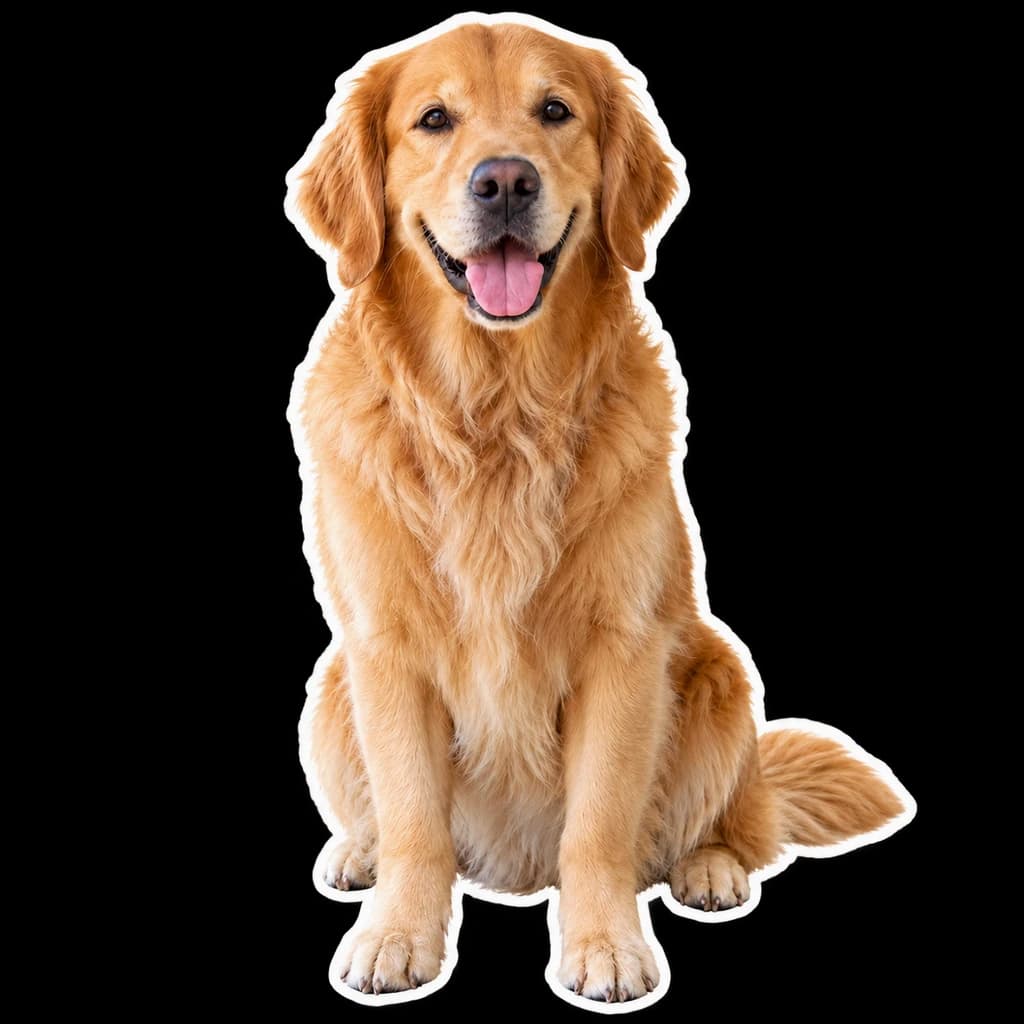
Look at what was removed. The portrait with terracotta glasses loses her plant and wall, and a thin white edge follows her curls. The golden retriever leaves the porch behind and keeps every tuft of fur. The couple on the sofa become one shape with a shared border; the sofa itself is gone. All three stay close to the original photo.
 ORIGINALSTICKER
Portrait with terracotta glasses01 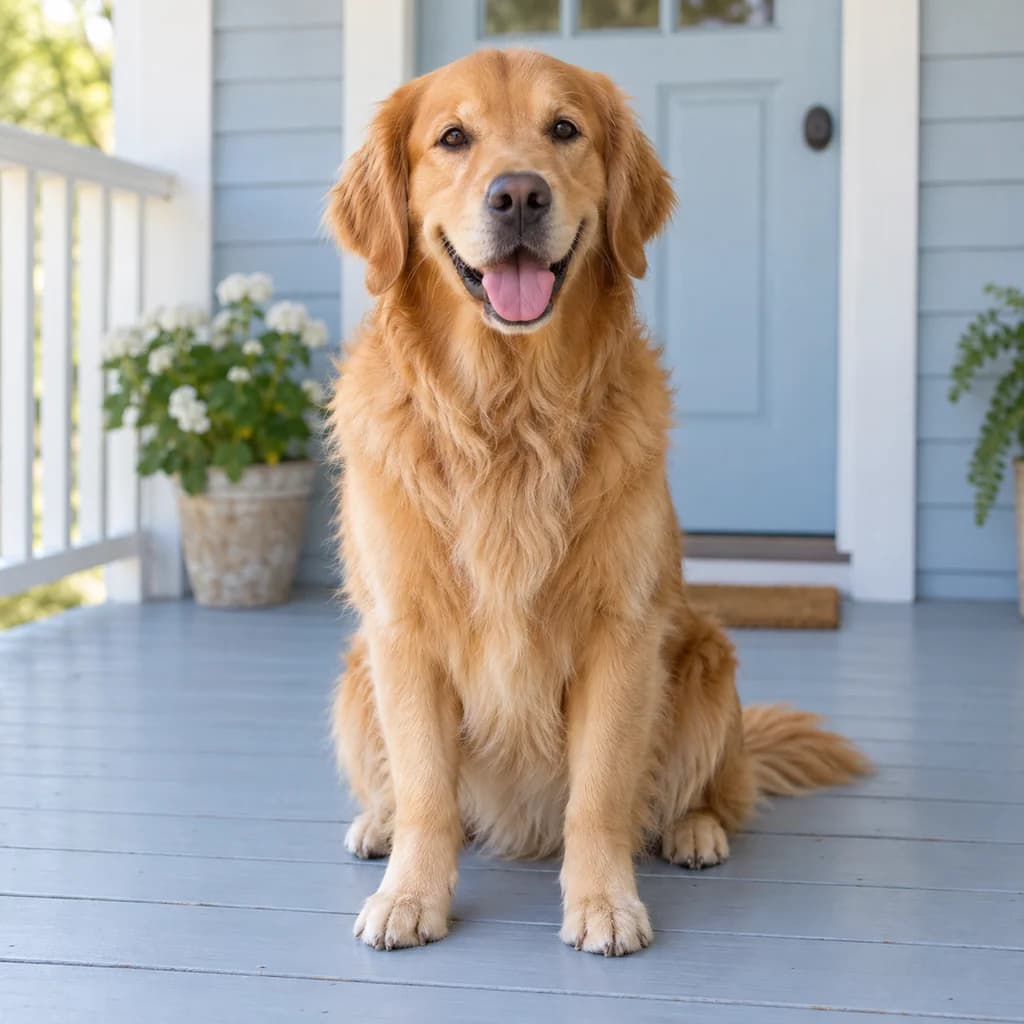 ORIGINAL
 STICKER
Golden retriever on the porch02  ORIGINAL
 STICKER
Couple on the sofa03
Illustrative style preview · Your result will vary
What is sticker style?
A sticker is a printed image on adhesive backing, and a die-cut sticker is trimmed along the outline of its design, usually with a narrow white margin. R. Stanton Avery made the first self-adhesive labels in 1935, and messaging apps such as LINE turned stickers into chat reactions in the early 2010s. Either way, the subject has to stand on its own, cut away from its scene.
That cutout is what this style makes. The people or pet are lifted out of the photo onto plain white and traced with a white border. The finish ranges from close to the photo, as in these samples, to a crisper illustration on other runs. The PNG is the artwork to start from, not a printed sticker or a transparent file.
How to turn a photo into a sticker
Sticker cuts your subject out of the scene, so a clean, complete outline matters most.
Couple on the sofa STEP 01
Upload a clear subject
Any JPG, PNG or WebP up to 10 MB will do, or pick a sample to test with. Keep the whole subject in the frame, from hair to shoulders or nose to tail, because anything the photo's edge crops off can end in a straight cut on the sticker.
- OriginalSticker
STEP 02
Cut it out and add the border
The subject is lifted out of the photo and redrawn with clean edges, anywhere from nearly photographic to crisply illustrated. A white border is traced around the outline, and the scene behind is replaced with plain white.
STEP 03
Generate and download the sticker
Sign in and generate using credits, from 8 per sticker depending on model and quality. Download the PNG on its white background, or open it later from your history to run the background remover.
Ways to use it
Anywhere a bold, cut-out look fits.
- Laptop and bottle stickersCut out the background, then send the PNG to a sticker printing service.
- Chat sticker packsAdd your sticker to a custom pack in chat apps that allow your own stickers.
- Party favorsPrint sticker sheets of the birthday kid or the happy couple for guests.
- Pet stickersYour dog or cat as a bold sticker makes a sweet gift for a pet lover.
- Team stickersTurn the team, or the office dog, into stickers for everyone's laptops.
- Scrapbooks and plannersDecorate journals, planners and scrapbook pages with sticker versions of your photos.
Photo to Sticker: what to expect
What the cutout keeps, what it leaves behind and what you still need before printing.
| FEATURE | What you get | Before you start | Limits |
|---|---|---|---|
| Subject | Face, hair, clothes and colors kept close to the photo, with a light illustrated finish. | Check that nothing important is cut off by the photo's edge, like ears, hands or a tail. | Some runs look more photographic than drawn, and you can't set the amount of illustration. |
| Border | A white die-cut edge that follows hair, shoulders and fur, sometimes with a faint gray line. | Leave some space between the subject and the edges of the photo so the border can go all the way around. | Fine details like flyaway hair or whiskers get smoothed into the border. |
| Background | The original scene removed and replaced with plain white. | If the setting matters, like a beach or a landmark, choose another style, because this one drops it. | Not transparent: a see-through PNG needs the background remover (4 credits). |
| Groups and furniture | Two people close together become one sticker with a shared border. | Pick a shot where people touch or overlap, so the outline stays one shape. | Things they sit or lean on, like the sofa in the sample, can vanish and leave a floating pose. |
Tips for better sticker results
A few choices help you convert your photo to sticker art that prints well.
- 01
Pick a clear outline
Subjects with a clean outline, like a sitting pet or a standing person, get the neatest border around the outline.
- 02
Stick to one or two subjects
Stickers read best small. One person or pet stays bold, while a big group turns into lots of tiny details.
- 03
Use a plain background
A plain wall or sky behind the subject makes the border stand out and the background easier to remove.
- 04
Cut out before you print
For printed stickers, remove the background with our background remover for 4 credits. Printing big? Run it through the upscaler too.
Photo to Sticker FAQ
What the cutout keeps, what happens to the background and how sticker compares with emoji; the main FAQ answers the general account, credit and privacy questions.
Will the sticker still look like me?
Do I get a transparent background?
Will it look like a cartoon?
Why did the sofa disappear in the couple sample?
How is sticker different from the emoji style?
What file do I get, and can I print stickers from it?
Does it work for pets and groups?
Why does each sticker come out a little different?
Can I sell stickers made with this?




Turn your photo into a sticker design you can print
Open the three cutouts for free and check the border and edge quality. When you're ready to cut out your own person or pet, sign in and use credits. Plans start at $9.99 per month, and the background remover is there if you need a transparent file.